



5 min read
Introduction to table views
Get more out of your data in Superhuman Docs with connected table views.

You'll get...
- How Superhuman Docs table views function
- Why you should use views
- When you should use views

You'll use...
- Tables
- Columns
- Table options
1. Why Superhuman Docs tables feel different
If you have used tables in docs before, you may notice that Superhuman Docs tables work a little differently from spreadsheets like Excel or Sheets. That is because Superhuman Docs was designed to feel as powerful as an app. To do that, it needed real tables, not sheets. In a table, rows and columns have distinct roles. Rows represent individual records, and columns store information about those records. In other words, Superhuman Docs tables are modeled more like relational databases than traditional spreadsheets. One of the biggest benefits of this structure is connected views, which let you see the same data in different places and formats while still editing the values in one shared source. For example, you might edit a due date directly in a table or adjust it in a calendar view, and the change will stay in sync everywhere.2. Start with a base table
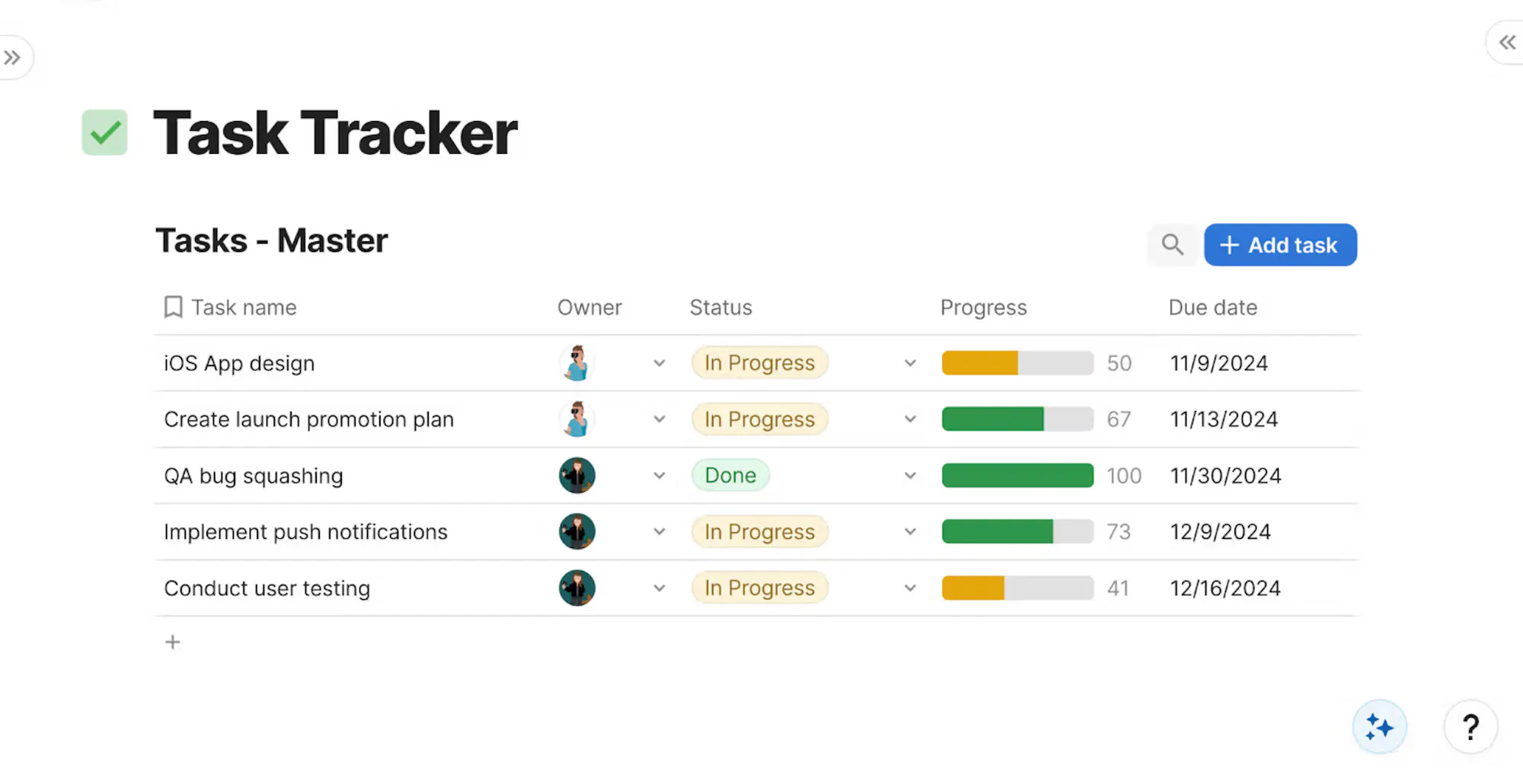
You can think of a base table as your “master” table — the one that will hold every little piece of data you might need in your doc. Your base table should stay simple and clean, with no extra sorting or formatting applied. Save the styling for your views. When creating your base table, it’s helpful to think of your data in terms of nouns and adjectives:- Rows = nouns
- Columns = adjectives
3. Create your views
Create as many views as you need to answer different questions with the same data. For example, if you have a base table of all projects across your organization, you might want to create some of the following connected views:- Team-specific views
- User-specific views
- Projects with a status of “at risk”
- Projects with a status of “complete”
- A chart view of your data
- A calendar view of your data
/ followed by the name of your base table, or by typing /table and selecting your existing table from the menu.4. Columns in table views
Connected tables all pull from the same set of columns, and you can choose to hide or show them based on how you’d like to configure your views. Hiding or showing a column in one view will not affect its visibility in the base table or other connected views. Some column changes do affect every connected view, though:- Renaming a column updates it everywhere
- Adding a new column makes it available in all connected views
- Deleting a column removes it from every connected view, including the base table
5. When to use views instead of stand-alone tables
In most cases, fewer tables and more connected views is the better approach. Every duplicate table creates more room for error, because updates need to be made in multiple places. With connected views, changes happen once and are reflected everywhere automatically. Views can change the look and feel of your data while keeping the actual data the same, no matter how it’s being displayed. In most cases, not everybody needs access to every piece of data recorded in your base table, or master table, at all times. Remember that you can use table filters and hide columns to create slimmed-down views for specific audiences, change the layout of your table view for better visualization, and apply conditional formatting for quicker visual summarization.Now what?
Say goodbye to monotonous, manual data updates and make way for connected views.- Check out our Databases 101 course for more on building amazing tables and databases in Superhuman Docs!
- Want to learn more about what you can do with tables and vies? Checkout our New table or new view? guide.
Was this helpful?
YesNo